
Overview
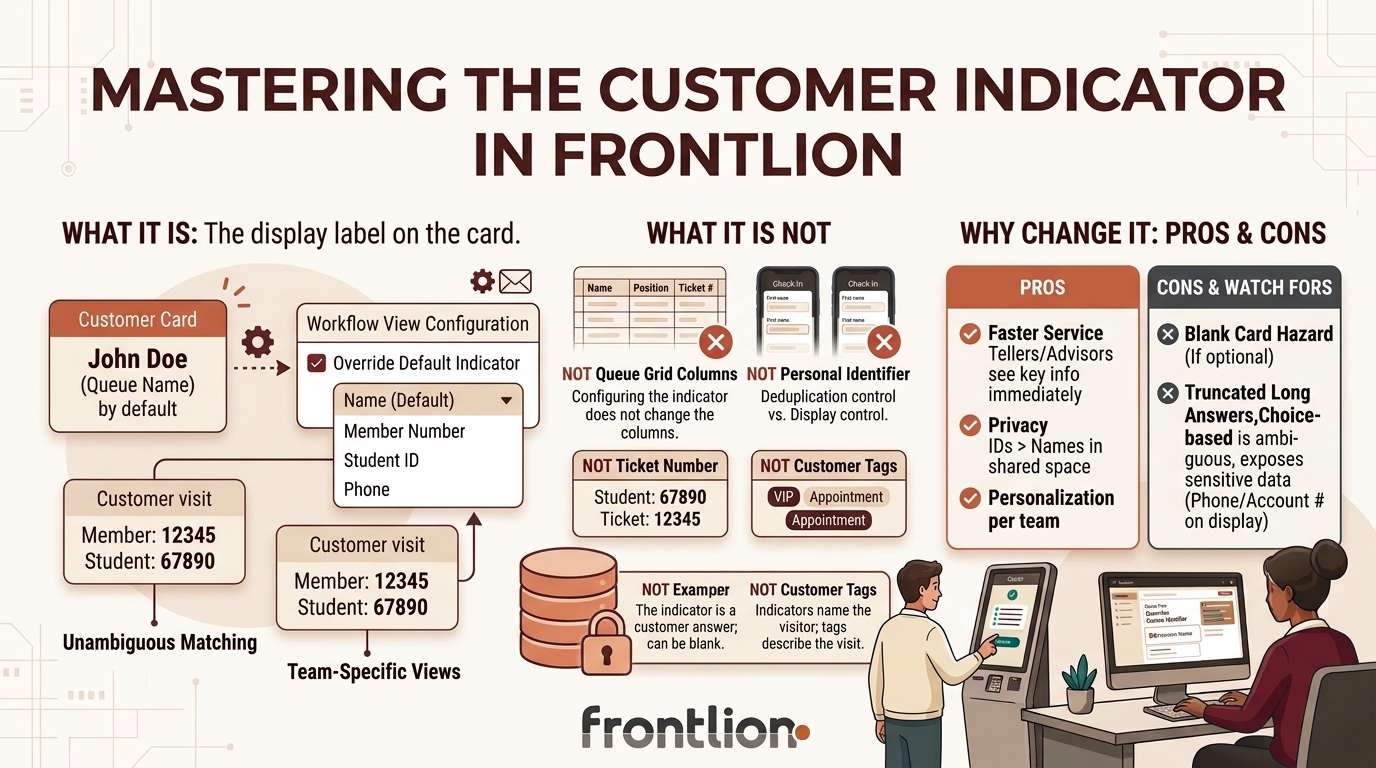
The customer indicator is the label at the top of each customer card in the Queue side panel. It is the first thing an associate reads when they call someone forward, and it is how they tell one waiting customer from another at a glance.
By default, Frontlion uses the customer's name. Frontlion now lets you replace that default, per Queue View, with the answer to any question in the connected workflow — a member number, a booking reference, a student ID, a case number, or a phone number.
Nothing about the visit changes. The indicator is a display setting: it does not affect routing, wait times, reporting, or what the customer sees.
Where it appears
- On the compact customer card in the Queue side panel, above the queue name and action buttons.
- On the expanded card, above the Visit Summary and General Form tabs.
With the override applied to the phone question, the same cards are headed by the phone number instead:
What it is not
| Not to be confused with | Difference |
|---|---|
| The Queue grid columns | The Ticket, Name, Position, Phone and other columns in the main list are configured separately, in the column list higher up the same Queue View. Changing the indicator does not change the columns. |
| The Personal Identifier | The Personal Identifier controls whether a duplicate check-in is blocked. The customer indicator controls what associates see. A question can be one, the other, both, or neither. |
| The ticket number | The ticket number is issued by Frontlion and always exists. The indicator is an answer the customer gave, so it can be blank if the question was not asked or not answered. |
| Customer Tags | Tags mark a visit with attributes such as Emergency or Appointment. The indicator names the visitor. |
Why change it
Pros
- Associates see the value they actually work from. In a workshop the job is the vehicle; in a bank branch it is the member number. Showing that instead of a name removes a lookup step at the start of every service.
- Faster, safer matching. Names repeat and sound alike. A reference number is unambiguous, so the associate is confident they have called the right person.
- It works when there is no name. Some workflows do not ask for a name at all, or a name is optional. A reference number is always there when you have made it required.
- Privacy in shared spaces. If associate screens are visible to other visitors, a case number on the card exposes far less than a full name.
- Different teams can see different things. The setting is per Queue View, so a service desk and a teller line can each show what suits them.
- No cost to the customer. The check-in form does not change — you are only choosing which existing answer to display.
Cons and things to watch for
- A blank answer leaves a blank card. If the question is optional and the visitor skips it, there is nothing to display and the card loses its heading. Use a required question.
- Service questions do not cover everyone. A question inside a service question set is only asked of visitors routed to that set. Everyone else gets an empty indicator.
- Long answers are truncated. The card is narrow. Free-text answers longer than a few words will be cut off.
- Choice-based answers do not distinguish people. If the indicator is a dropdown, ten waiting customers may all read "General Enquiry", which is worse than no change at all.
- It can expose sensitive data. A phone number or account number on a screen visible from the waiting area is a privacy decision, not just a display one.
- Associates lose the name cue. Greeting someone by name matters in some settings. Check with the floor team before removing it.
- Verbal calling still uses your announcement settings. Changing the indicator changes what is on screen for staff; it does not change what is announced or displayed to the waiting room.
Best practices by industry
| Industry | Suggested indicator | Why | Watch out for |
|---|---|---|---|
| Retail and consumer electronics | Keep the default name | Service is personal and short; a name is the friendliest opening and there is rarely a reference number to use. | If you switch to phone number, remember it is visible on any screen a customer can see. |
| Banking and credit unions | Member or account number | The teller opens the account record first anyway, and the number is unambiguous where names repeat. | Joint accounts share a number — pair the card with a name column in the grid. |
| Healthcare and clinics | Patient ID or appointment reference | Keeps patient names off screens that are visible from waiting areas. | Confirm with your privacy team which identifier may be displayed at all. |
| Government and DMV | Case or confirmation number | The case is the unit of work, and the number ties the visit to the file the officer will open. | Walk-ins with no case number will show a blank indicator — give them a separate Queue View or a fallback question. |
| Higher education | Student ID | One per student, already on their card, and it matches the record the adviser opens. | Prospective students and parents have no ID. |
| Telecom and utilities | Account number | Unique per service and it is what the agent searches on. | Business accounts send several representatives on one number. |
| Automotive service | License plate or VIN | The queue is really a queue of vehicles; the plate is what the technician needs. | Keep the plate short and consistent — free text invites formatting variation. |
| Logistics and parcel | Tracking or order number | The counter clerk retrieves against the number, not the person. | Visitors collecting several parcels have several numbers. |
Should you change it?
| If… | Then |
|---|---|
| Associates greet customers by name and service is conversational | Keep the default. |
| Associates always look up a record before serving | Show the value they look up with. |
| Your workflow does not ask for a name, or the name is optional | Change it — otherwise cards will be blank. |
| Screens are visible to the waiting area | Change it to something non-identifying, or keep names off screen entirely. |
| Only one team needs a different view | Create a separate Queue View for that team rather than changing everyone's. |
General best practices
- Pick a question every visitor answers. A General Question is safest; a service question only covers the visitors routed to it.
- Make it required. A blank answer produces a blank card heading.
- Keep it short. Set a Max Length on the question so long answers cannot overflow the card.
- Name the question clearly. The Queue View picker lists questions by their source and short name — General Question - Phone, Select a Queue Question Set - Queue — so a short name like "Text2" is very hard to find later.
- Prefer structured types. Number, Email and SMS-Enabled Phone display consistently; free Text does not.
- Decide the privacy question first. Ask who can see associate screens before you put a phone or account number on them.
- Tell the floor team. Associates who expect a name and see a number will think something is broken.
- Test: Check in as a visitor who answers the question and one who does not, and look at both cards.
Where to go next
- How to configure Custom Customer Indicator in Queue Views
- How to use Customer Indicator in the Queue
For additional support, contact the Frontlion Support Team.
Was this article helpful?
Articles in this section
- Customized Queue Views - Combined Queue Columns
- Introduction to the Customer Indicator
- Introduction to the Personal Identifier
- Introducing Associate Interface Language
- Introduction to the Charts & Pivots Output Insights types
- Auto Call: Keeping Queues Moving Without Manual Intervention
- Service Guides: Standardizing Excellence at the Moment of Service
- Customer Properties: A Persistent Data Layer That Remembers Every Customer
- Insights - Data Dictionary
- How to Join a Virtual Waiting Line